
Introduction
TrustCentrix Owners Portal is a secure website for owners of rooms and apartments in a hotel or resort managed with GuestCentrix. It lets owners follow how their property is performing, see upcoming bookings, request stays and read messages from the hotel, from a desktop, tablet or phone.
The portal reads the same data as GuestCentrix. Revenue, statements and bookings shown in the portal come straight from the hotel's property management system.
Who this guide is for
This guide is for property owners and their nominated contacts who use the Owners Portal, and for hotel staff who support owners. It walks through each screen in the order it appears in the menu.
About the screenshots
The screenshots in this guide were taken in Demo mode, which shows sample data for a fictional property. Names, rooms, amounts and dates are examples only. Your screens show your own property's data and your hotel group's name.
What you need
- A current web browser such as Microsoft Edge, Google Chrome or Safari.
- The Owners Portal web address for your hotel, supplied by the hotel.
- An Owners Portal user name and password, supplied by the hotel.
Note: Your hotel decides which areas of the portal are switched on. If a screen in this guide is missing from your menu, contact your hotel's owner relations team.
Signing in
Logging in
Open the Owners Portal web address in your browser. The login screen appears, with your hotel group's name at the top.
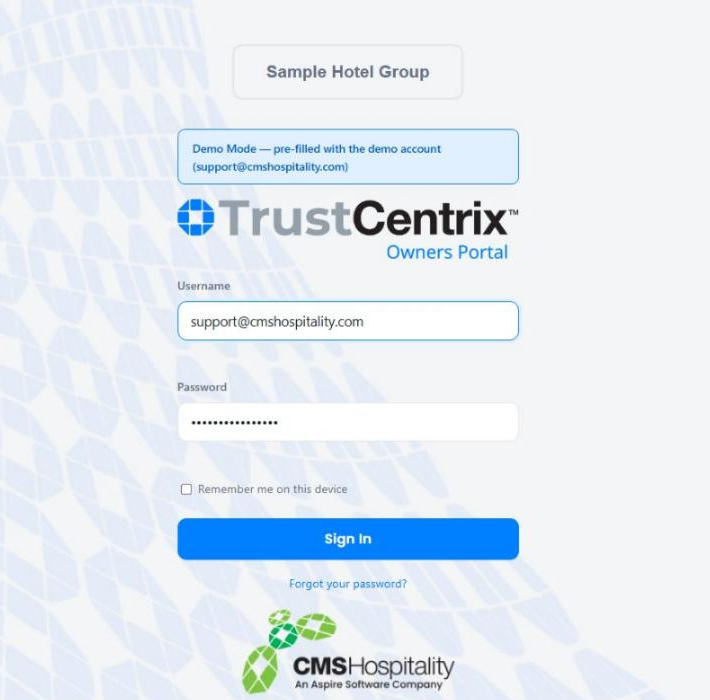
- Enter your Username (usually your email address) and Password.
- Tick Remember me on this device if you want the portal to remember you on this computer or phone. Do not tick it on a shared device.
- Select Sign In. The Home page opens.
The Light, Dark and Contrast buttons below the login form change how the portal looks on this device. Your choice is remembered for next time.
Forgotten password
Select Forgot your password? below the Sign In button and follow the instructions. If you do not receive a reset email, contact your hotel.
Demo mode
Demo mode lets you explore the Owners Portal with sample data. Nothing you do in Demo mode changes real data, and stay requests made in Demo mode are not sent to the hotel.
- Open the demo address supplied by CMS Hospitality. A Demo Mode notice shows that the demo account is already filled in.
- Select Sign In. Each screen shows a blue Demo Mode notice explaining that the data is sample data.
- To leave, select Log Out at the top right.
Finding your way around
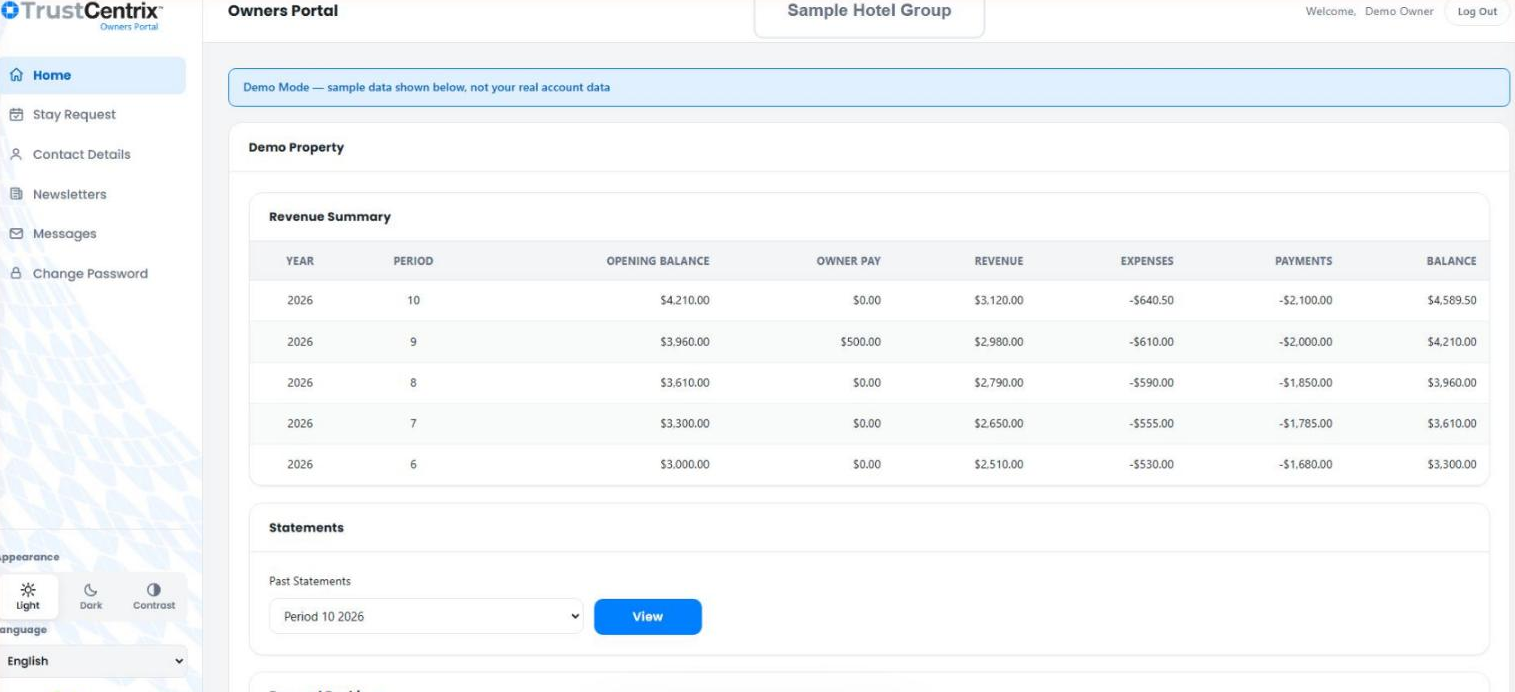
Every Owners Portal screen has the same layout: the menu on the left, the page title and hotel group across the top, and the content in the middle.
The menu
The menu on the left lists the screens available to you:
Menu item | What it is for |
|---|---|
Home | Revenue Summary, Statements and Forward Bookings for your property. |
Stay Request | Ask the hotel to book a stay for you or a guest. |
Contact Details | The owner and contact details the hotel holds for you. |
Newsletters | Owner newsletters issued by the hotel. |
Messages | Messages from the hotel to you. |
Change Password | Change your sign-in password. |
The top bar
The top bar shows the name of the current page, your hotel group, a Welcome message with your name, and Log Out.
Appearance
Use Light, Dark or Contrast at the bottom of the menu to change the colour scheme. Contrast uses stronger colours that are easier to read in bright light or for people with low vision.
Language
Use the Language list at the bottom of the menu to change the language of the portal. Languages include English, Español, Français, Deutsch, Italiano, Português, 日本語 and 한국어.
Home
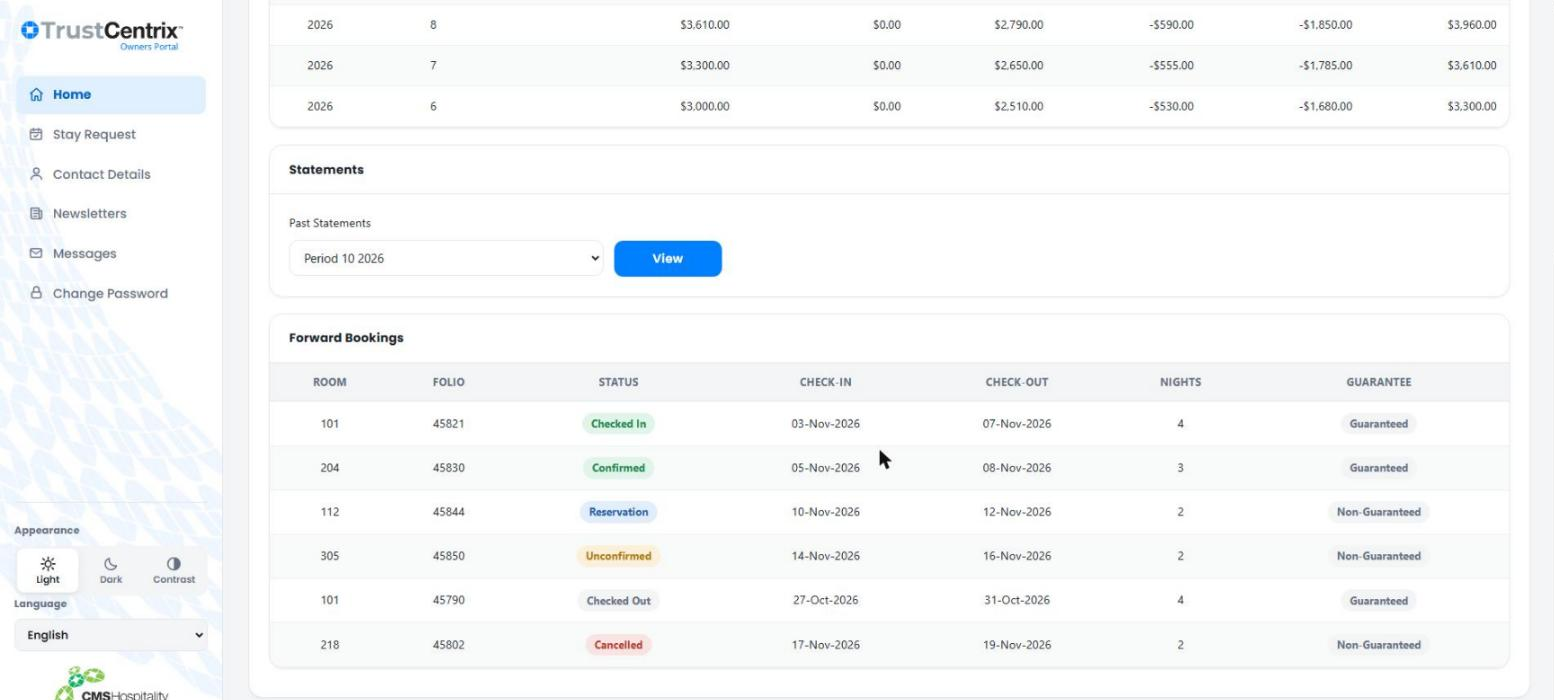
Home opens when you log in. Your property name is shown at the top, followed by three sections: Revenue Summary, Statements and Forward Bookings.
Revenue Summary
The Revenue Summary shows one row for each accounting period, newest first.
Column | Meaning |
|---|---|
Year / Period | The accounting year and period number. |
Opening Balance | Your balance at the start of the period. |
Owner Pay | Amounts paid to you during the period. |
Revenue | Revenue earned by your property during the period. |
Expenses | Charges against your property. Shown as negative amounts. |
Payments | Payments made during the period. Shown as negative amounts. |
Balance | Your closing balance for the period. This becomes the next period's Opening Balance. |
Statements
- Under Past Statements, choose the period you want, for example Period 10 2026.
- Select View to open the statement for that period.
Forward Bookings
Forward Bookings lists the bookings for your rooms. Each row shows the Room, Folio (booking number), Status, Check-in and Check-out dates, number of Nights and Guarantee. See Status reference at the end of this guide for what each status means.
Stay Request
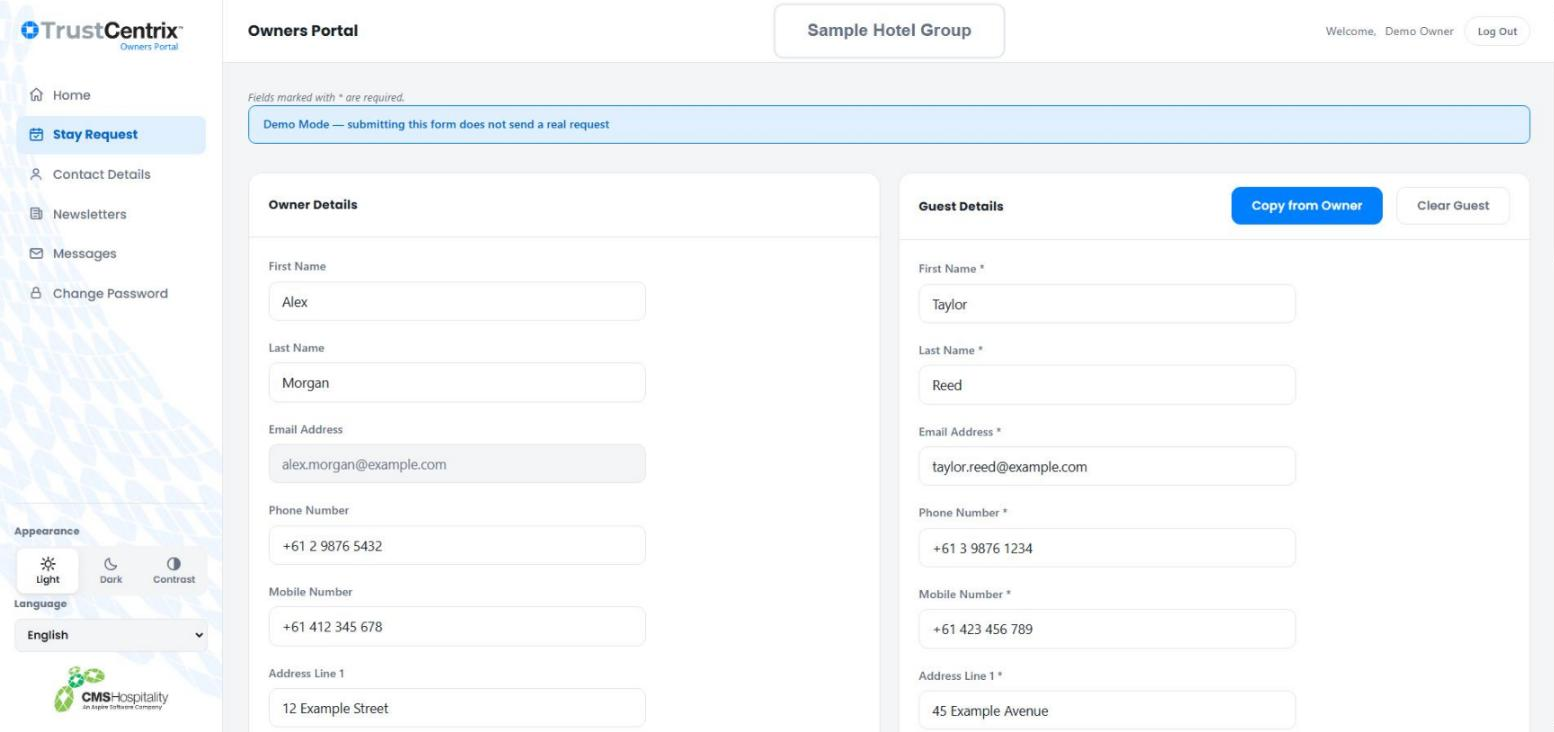
Use Stay Request to ask the hotel to book a stay in your property, for yourself or for a guest. Fields marked with * are required.
Owner Details
Your details are shown on the left for reference. You do not need to change them.
Guest Details
Enter the details of the person who will be staying.
- If you are staying yourself, select Copy from Owner to copy your details across.
- Select Clear Guest to empty the guest fields and start again.
- Required fields are First Name, Last Name, Email Address, Phone Number, Mobile Number, Address Line 1, Postcode and Country.
Stay Details
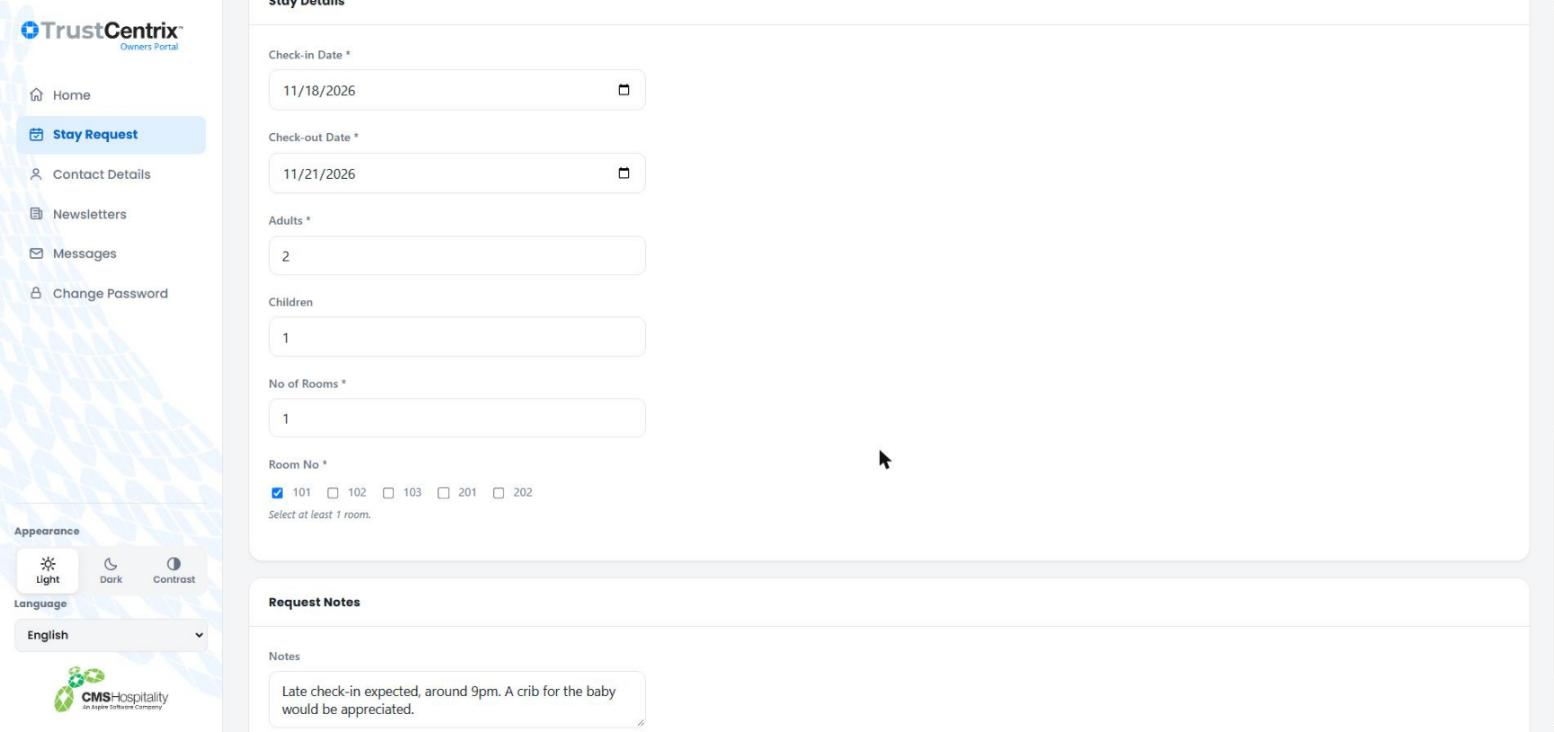
- Choose the Check-in Date and Check-out Date.
- Enter the number of Adults and, if any, Children.
- Enter the No of Rooms you need.
- Under Room No, select at least one of your rooms.
Sending the request
- Add anything the hotel should know in Request Notes, for example an arrival time or special requirements.
- Select Submit Request. To start again, select Clear.
Note: A stay request is a request, not a confirmed booking. The hotel reviews it and contacts you. Once the hotel has made the booking, it appears under Forward Bookings on the Home page.
Contact Details
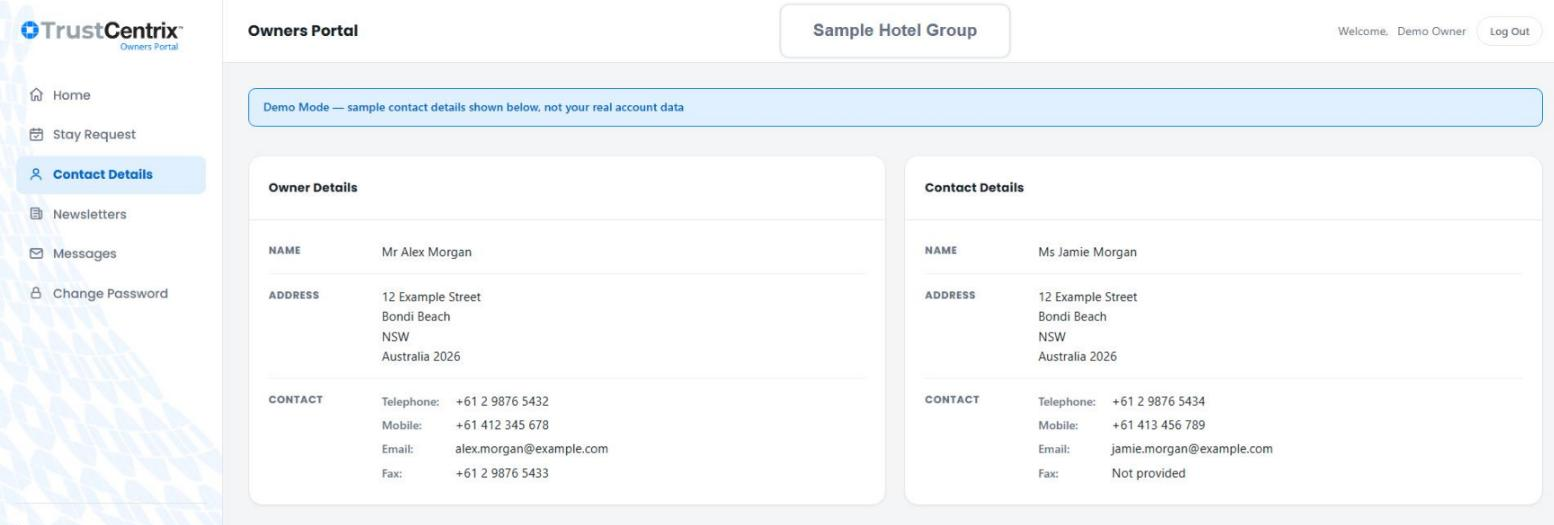
Contact Details shows the details the hotel holds for you, in two panels.
Panel | Shows |
|---|---|
Owner Details | The registered owner's name, address, telephone, mobile, email and fax. |
Contact Details | The person the hotel should contact about the property, if different from the owner. |
Note: Contact Details cannot be changed in the portal. If anything is wrong or out of date, ask your hotel to update it.
Newsletters and messages
Newsletters
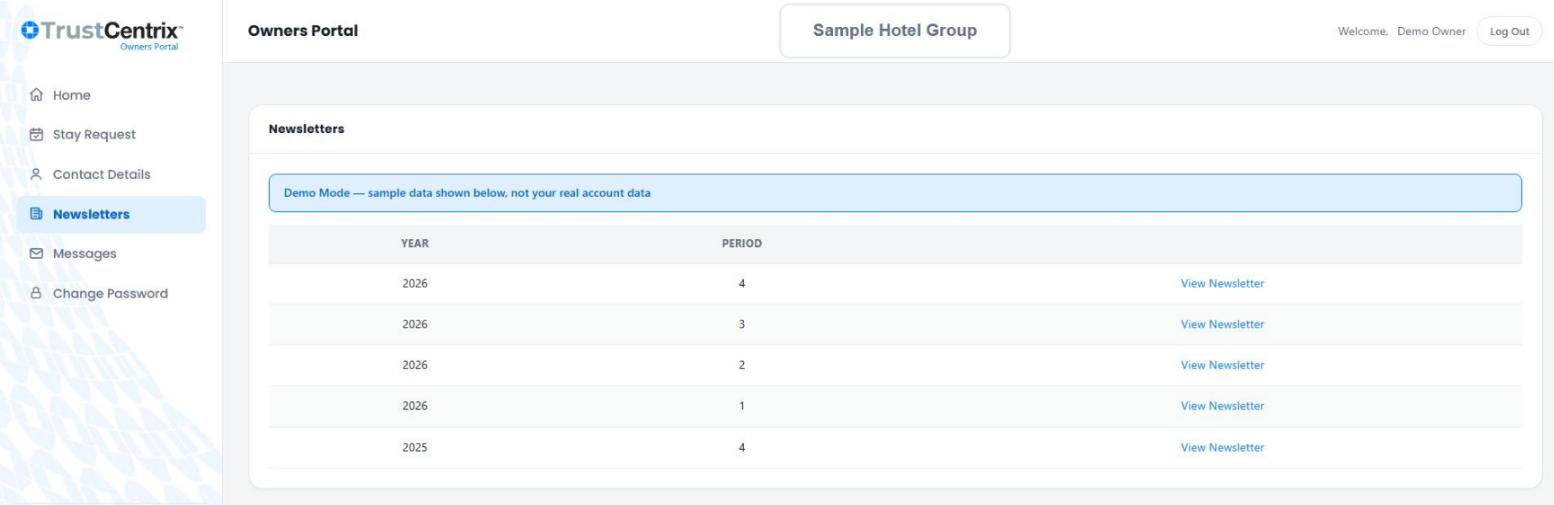
Newsletters lists owner newsletters by Year and Period, newest first. Select View Newsletter beside an issue to open it.
Messages
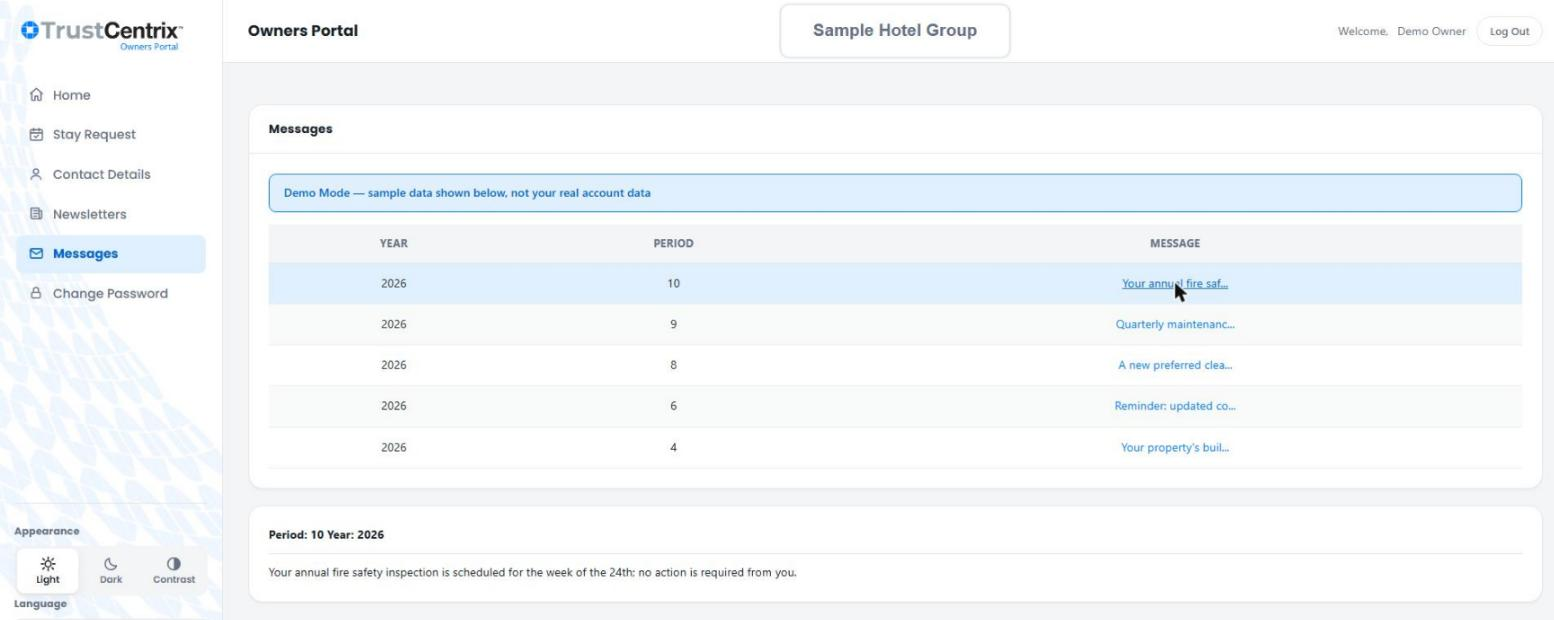
Messages lists messages from the hotel by Year and Period, with the start of each message. Select a message to read it in full in the panel below the list.
Your account
Changing your password
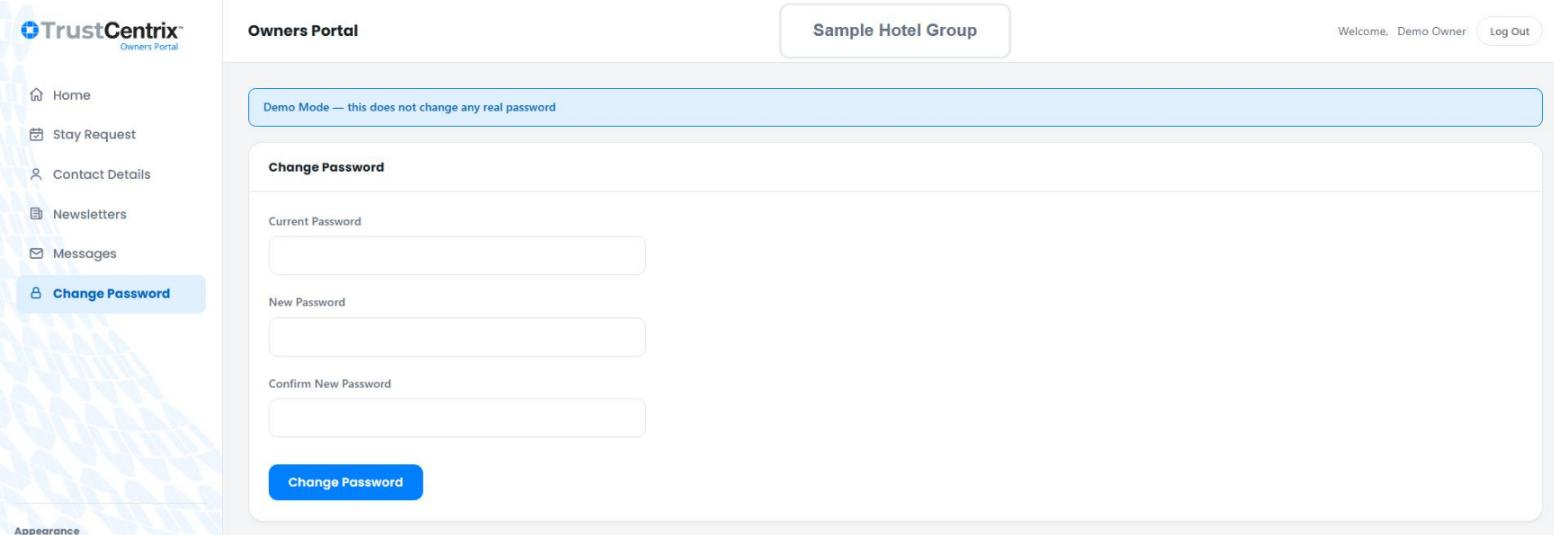
- Select Change Password in the menu.
- Enter your Current Password.
- Enter your New Password, then type it again in Confirm New Password.
- Select Change Password.
Logging out
Select Log Out at the top right. Always log out on a shared computer or phone.
Note: For security, the portal logs you out automatically after a period of inactivity.
Status reference
Booking status
Status | Meaning |
|---|---|
Reservation | The booking has been made but is not yet confirmed. |
Unconfirmed | The booking is waiting for confirmation. |
Confirmed | The booking is confirmed. |
Checked In | The guest is staying in the room now. |
Checked Out | The stay has finished. |
Cancelled | The booking has been cancelled. |
Guarantee
Guarantee | Meaning |
|---|---|
Guaranteed | The booking is secured, for example by a credit card or deposit. |
Non-Guaranteed | The booking is not secured and may be released if the guest does not arrive. |
TrustCentrix Owners Portal User Guide · Version 7.4.2 · 4 November 2026